Your Director's Guide
Venues
A venue is a saved place your videos can take place, your office, shop floor or any setting you describe. Videos use the primary venue unless you pick another. Saving one is free; rendering its image costs 1 credit.
What are venues in GetReelCom?
A venue is a saved location where your videos can take place: your office, shop floor, a training room, or any real or invented setting you describe.
Why are venues important for a video?
The venue sets the background the scene is rendered in. Videos take place at the primary venue unless you pick another. Without any venue, the scene description decides the setting.
Which types of locations can I add?
Any location you can describe: an office, a shop floor, a factory, a training room, an event space, wherever your customers are.
Can I add my office, store, factory, or another location?
Yes. Give it a name and describe what the place looks like.
- Open the project and click Venues in the left sidebar.
- Click Add a venue, or the primary venue card if there is none yet.
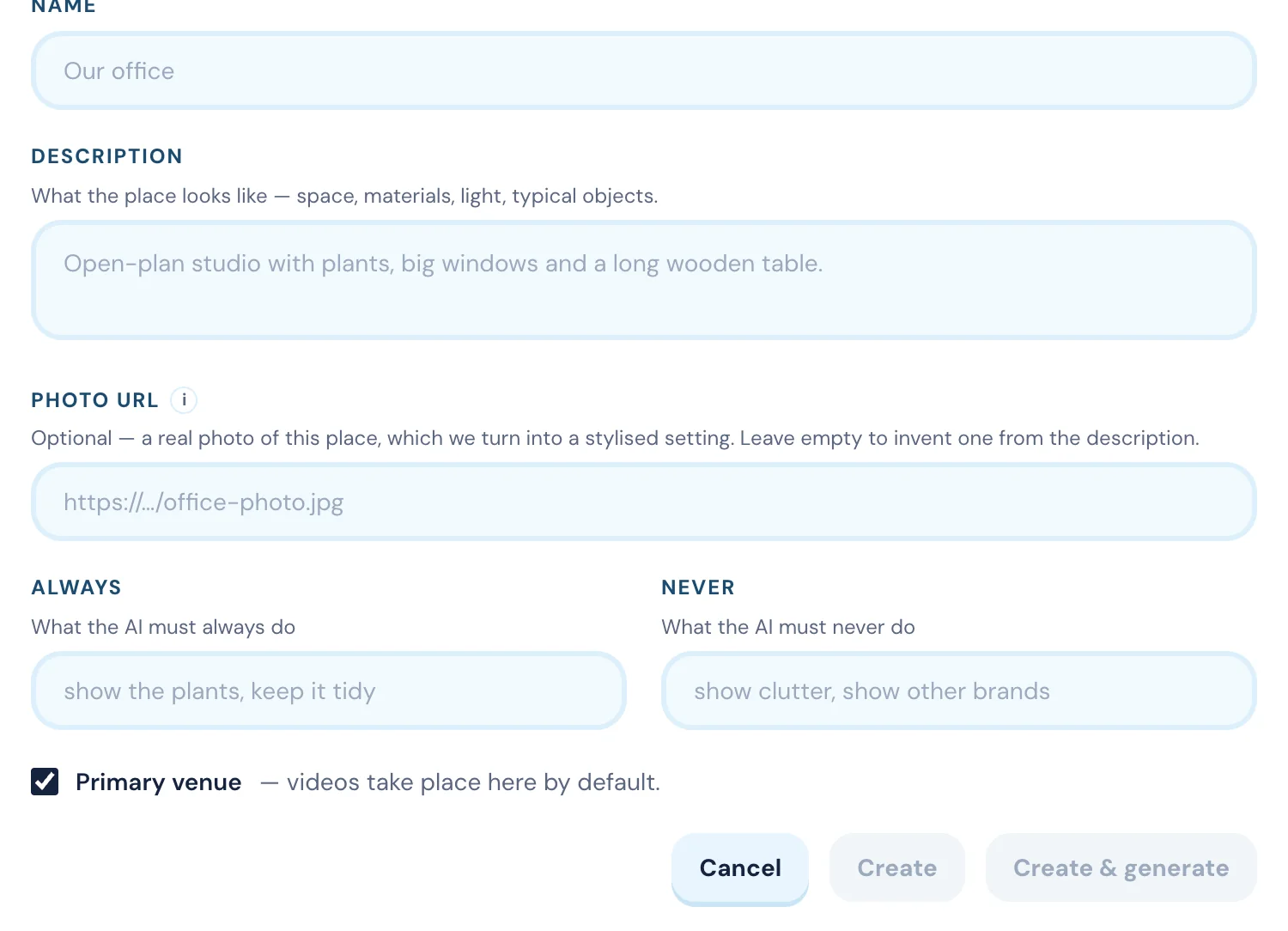
- Fill in Name and Description (space, materials, light, typical objects), and optionally a Photo URL.
- Optionally set Always and Never instructions, and tick or untick Primary venue.
- Click Create & generate to save it and render a stylised image of it.
Can I add multiple venues?
Yes. There is one primary venue plus any number of others.
Can I choose a venue for each video?
Yes, when the project has more than one venue saved. The New video screen shows a Where does it take place? picker; click a venue, or click the selected one again to let the description decide the setting instead. With only one venue saved, the picker does not appear.
How do I add an image URL for a venue?
Paste a direct link to a real photo of the place into the venue’s Photo URL field. GetReelCom turns the photo into a stylised setting.
- Find the photo online, right-click it and choose Copy image address (Chrome) or Copy Image Link (Safari).
- Paste the link into Photo URL. It must point to the image file, not to a web page.
What happens if I cannot find an image URL for my venue?
Leave Photo URL empty and make the Description as specific as you can; GetReelCom invents the place from it. Or upload a photo to Google Drive or Microsoft OneDrive, share it publicly and use that link. See Add an image URL.
How do I make a generated venue look like my real location?
Give it a real Photo URL and a detailed Description covering space, materials, light and typical objects. The photo is the reference the rendering is based on; the description fills in what the photo does not show.